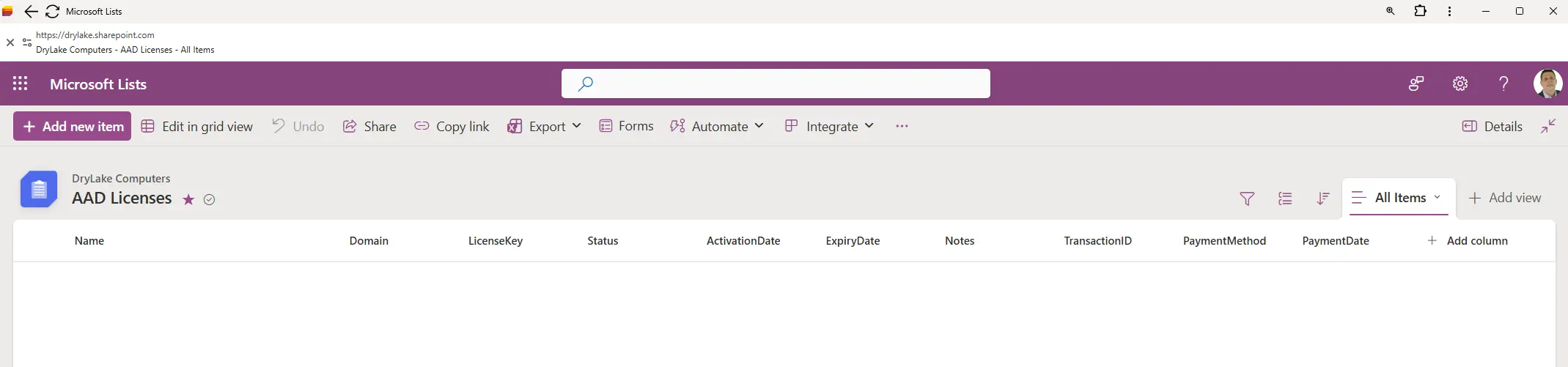
Microsoft List Variable:
The Microsoft List variable is just the name of the List itself. Once created, it will be visible on the left corner of the ribbon.
(Exactly as it appears. In this case “AAD Licenses” with the space)
Create a Microsoft List:
NOTE: There can be NO SPACES in the column names.
This is the build list of the required fields for License Keep.
Do not worry about permissions as the License Keep connects via the Application API, not user flow.
The field names and types are as follows:
- PluginName(Renamed Title)
- Domain (Text)
- LicenseKey (Text)
- Status (Choice: Active, Cancelled, Suspended, Disabled)
- ActivationDate (Date)
- ExpiryDate (date)
- Notes (Text, optional)
- TransactionID (Text)
- PaymentMethod (Choice: PayPal)
- PaymentDate (Date)
Internal names are fixed at creation: When a column is created, SharePoint assigns an internal name based on what was typed initially. This internal name is what APIs (like Microsoft Graph) use.
Renaming does not change the internal name: If the column is renamed later in the UI, only the display name changes. The backend still uses the original internal name.
Why this matters for LicenseKeep: The LicenseKeep plugin queries Microsoft Graph using internal names. If the internal name doesn’t match what the code expects, the field will not return data.
Fixing incorrect names: If the internal name is wrong or misspelled, renaming won’t help. The column must be deleted and recreated with the correct name to change the internal name.